


Every field in a Power BI semantic model has an “Available In MDX” property that builds hierarchies for Excel pivot table compatibility. If users won’t be adding a field to Excel pivot table rows or columns – which is true for most numeric keys, IDs, and measures-only fields – disabling this property reduces model size, memory consumption, and processing time. Use Tabular Editor to toggle the property and DAX Studio to measure the impact before and after.
The benefits are most noticeable in Import mode models. All the examples here use Import mode. On Direct Query or Direct Lake, it’s more difficult to see the benefits.
What is the Power BI Available in MDX property?
The semantic model is managed by an internal analysis service, which is in the core of Power BI services.
Power BI uses DAX, not MDX. Because this, it’s not affected by this property (mostly). Excel, on the other hand, communicates using MDX.
Excel allows the user to build pivot tables using the data from the semantic model. The user can choose which field will be positioned in columns, rows, or values, such as in the pivot table illustrated bellow.
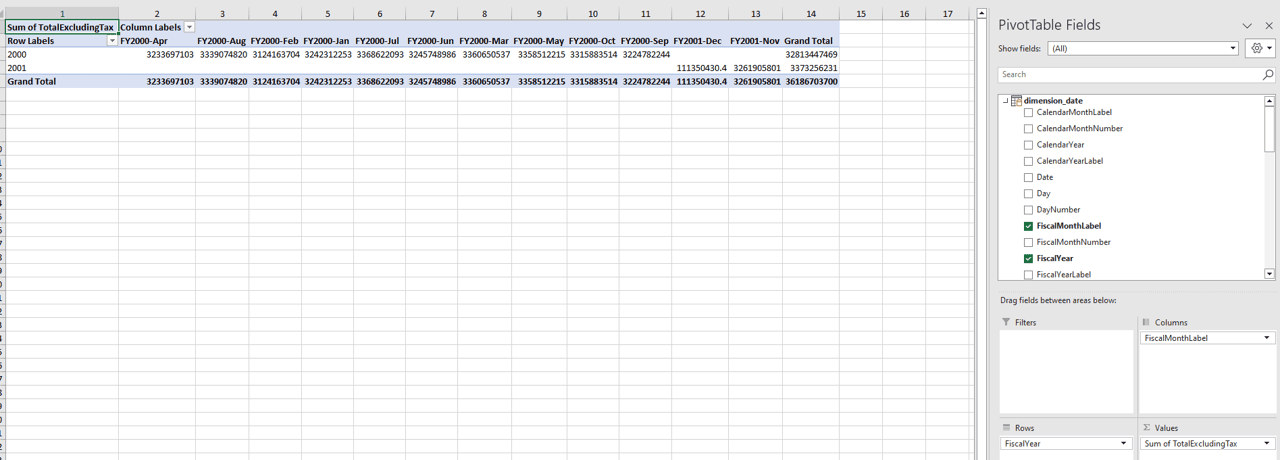
Here is the rub: For the field to be used in columns or rows, it needs a hierarchy, and this hierarchy is only built if the property Available in MDX is enabled.
If we disable this property, the user can’t add the field in question as column or row in an Excel pivot table.
On the other hand, do you notice how many fields in your semantic model will never be added as columns or rows in an excel pivot table?
Read also:
DAX CALCULATE and VALUES functions in Power BI
Calendar tables and dates in Power BI
DAX filtering for paginated reports
What tools do you need for Power BI Available in MDX?
We can check how this will affect our model using DAX Studio.
We can change the property value using Tabular Editor
Power BI .Tips portal has a tool to install external tools in Power BI, it’s the easiest way to do it. Once installed, the external tools will appear in power bi menu, like the image below

Once you have tools like DAX Studio and Tabular Editor installed, you can open a model in Power BI and click on the tool. You will use the tool to connect to your model.
What happens when you disable Power BI Available in MDX?
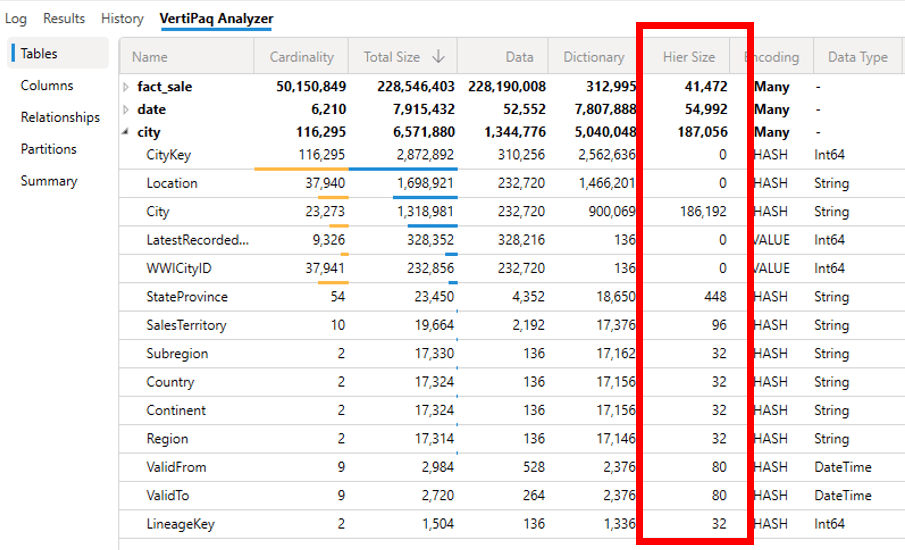
Using DAX Studio, you can check the size of your model. After opening DAX Studio, you click on Advanced menu -> View Metrics button.
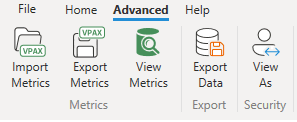
The metrics show information about each table and field in the model, like the image below:
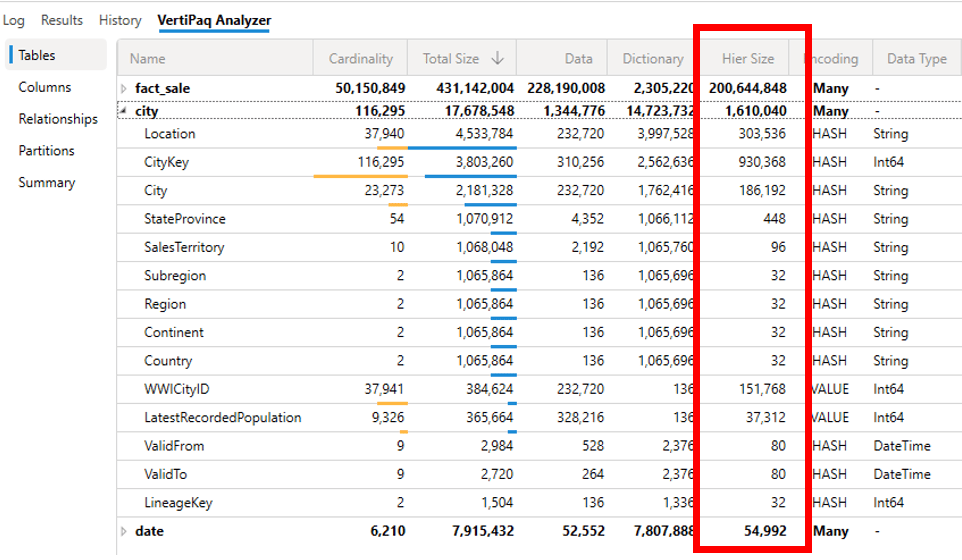
On our example, let’s use Tabular Editor to disable the Available in MDX property on the following tables and fields:
Table City:
- WWICityID
- CityKey
- Location
- LastRecordedPopulation
Table Fact_Sale:
- SaleKey
Once we open the model in Tabular Editor, we will be able to navigate through the model, like the image below:
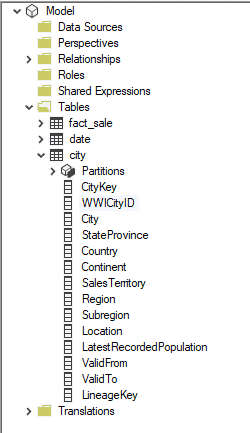
We select the fields which we would like to change and modify the property in the properties window.
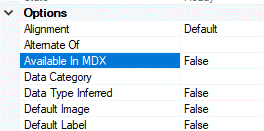
After disabling the property, we can check the metrics in DAX Studio again.
PBIX File Size
Our example uses Import mode, making it easy to notice the impact on the PBIX file size. Of course, it’s not only a matter of size, but memory consumption on Power BI service and processing.
File size before the property changes:

File size after the property changes:

FAQs: Model Optimization: Available in MDX Property
1. What is the Available In MDX property in Power BI?
Available In MDX is a property on every field in a Power BI semantic model that controls whether Analysis Services builds a hierarchy for that field. The hierarchy is needed for Excel pivot table row/column placement. Since Power BI uses DAX (not MDX), this property mostly affects Excel users connecting to your model.
2. How do you disable Available In MDX?
Use Tabular Editor, which is an external tool for Power BI. Open your model in Tabular Editor, navigate to the fields you want to modify, and set the “Available In MDX” property to False in the properties window. Save the model and republish to apply the changes.
3. How much does disabling Available In MDX reduce model size?
The reduction depends on the number of fields and their cardinality. Fields with high cardinality (many unique values) like IDs and keys produce larger hierarchies – disabling Available In MDX on these fields yields the biggest savings. Use DAX Studio’s View Metrics to measure model size before and after changes.





Load comments